

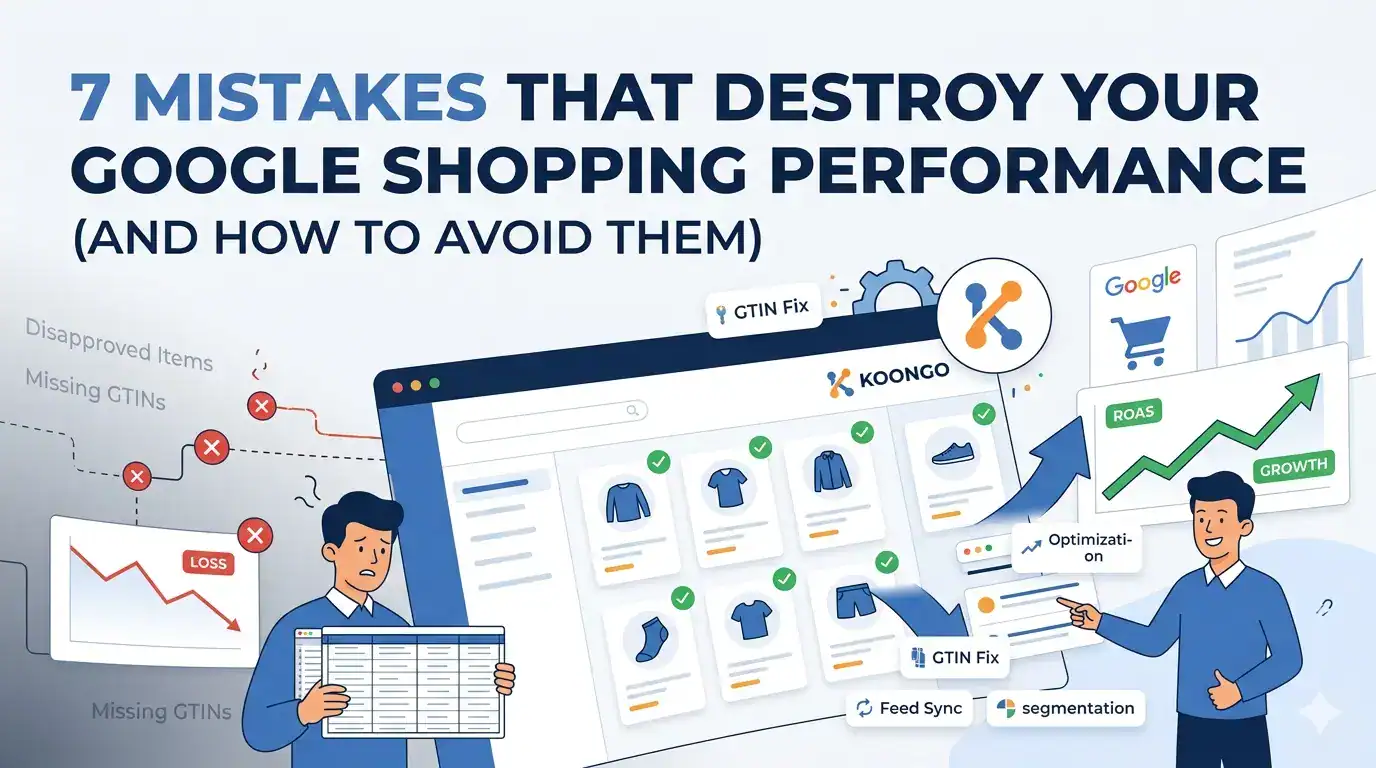
If your Google Shopping campaigns are not delivering the results you expect, the problem is usually not your bids or your budget. In most cases, it is your product feed. Feed quality issues account for the majority of underperforming Shopping campaigns yet most merchants never look there first. This guide walks you through the 7 most damaging mistakes, explains exactly why each one hurts you, and shows you how to fix them.
Key Takeaways
- Disapproved products generate zero impressions: fixing them is the fastest win available
- Missing or incorrect GTINs block your products from competitive Shopping auctions
- Vague product titles are the single biggest missed opportunity for free visibility
- Stale feed data causes price mismatches that can suspend your entire Merchant Center account
- You do not need to list every product: feed segmentation consistently improves ROAS
Obsah
- Mistake 1: Why Are Your Products Getting Disapproved on Google Shopping?
- Mistake 2: What Happens When Your GTIN Codes Are Missing or Wrong?
- Mistake 3: Why Do Vague Product Titles Kill Your Visibility?
- Mistake 4: How Does Poor Image Quality Reduce Your Click-Through Rate?
- Mistake 5: Why Is Sending All Your Products to Google Shopping a Mistake?
- Mistake 6: How Does Stale Product Feed Data Damage Your Campaigns?
- Mistake 7: How Often Should You Refresh Your Product Feed to Avoid Penalties?
- How Does Automating Your Feed Fix Most of These Mistakes at Once?
- FAQ
- Conclusion
Mistake 1: Why Are Your Products Getting Disapproved on Google Shopping?
Disapproved products do not appear in Google Shopping at all. No impressions, no clicks, no sales regardless of how much budget you allocate to your campaigns.
Google disapproves products when your feed violates its policies or contains data quality issues. The most common disapproval reasons are missing required attributes, policy violations, mismatched prices between your feed and website, and missing or invalid GTINs.
Most common disapproval reasons:
- Missing gtin, mpn, or brand attribute
- Price in feed does not match price on landing page
- Product image URL is broken or returns an error
- Product title or description contains promotional language (“Free shipping!”, “50% off”)
- Availability set to “in stock” but product is actually unavailable on the website
How to check: Log into Google Merchant Center > Products > All Products > filter by “Disapproved.” Google shows you the exact reason for each disapproval.
Mistake 2: What Happens When Your GTIN Codes Are Missing or Wrong?
GTIN (Global Trade Item Number) is the barcode identifier for your product the EAN code on the product packaging. When it is missing or incorrect, Google cannot match your listing to its product knowledge graph, which significantly limits your visibility and ad reach.
Products with valid GTINs are eligible to appear in more ad placements, receive richer product data from Google’s database, and often achieve lower cost-per-click in competitive auctions.
| GTIN Status | Impact |
| Valid GTIN present | Full eligibility for all placements, richer data |
| GTIN missing (product has one) | Reduced eligibility, lower quality score |
| GTIN missing (no barcode exists) | Use identifier_exists: false acceptable |
| Incorrect GTIN | Potential disapproval, policy violation |
What to do:
- Export your product catalog and check which products have EAN codes
- For branded products, always include the GTIN Google can verify it
- For custom or handmade products with no GTIN, set identifier_exists to false
- Never invent or guess a GTIN Google validates these against a global database

Source: Google Merchant Center Help – Product data specification and GTIN requirement ]
Mistake 3: Why Do Vague Product Titles Kill Your Visibility?
Your product title is the single most important attribute in your Google Shopping feed. Google uses it to match your product to search queries. A weak title means fewer matches, fewer impressions, and lower click-through rates.
Most merchants write titles the way they appear in their store short, brand-focused, and light on specifics. Google Shopping works differently. Shoppers search for “blue running shoes men size 44 Nike” not “Flyknit Pro.” Your title needs to contain the words people are actually typing.
| Weak Title | Optimized Title |
| Blue Sneaker | Nike Air Zoom Pegasus 41 Men’s Running Shoe Blue Size 42 |
| Coffee Table | Oak Wood Coffee Table 120x60cm Living Room Furniture Brown |
| Winter Jacket | Patagonia Down Jacket Women’s Black Windproof Size M |
| Phone Case | iPhone 15 Pro Silicone Case Transparent Drop Protection |
Recommended title structure for physical products:
[Brand] + [Product Type] + [Key Attribute 1] + [Key Attribute 2] + [Size/Color/Model]
Practical rules:
- Use the most important keywords at the beginning of the title
- Include color, size, and material when relevant
- Do not use ALL CAPS or excessive punctuation
- Keep titles under 150 characters Google displays approximately 70 in most placements
Mistake 4: How Does Poor Image Quality Reduce Your Click-Through Rate?
Google Shopping is a visual channel. Your product image is the first thing a shopper sees before reading the title or price. Low-quality, cluttered, or lifestyle-only images consistently produce lower click-through rates compared to clean product-on-white images.
Using a background remover helps isolate the product so you can place it on a clean white background.
Google has minimum image requirements (100x100px for non-apparel, 250x250px for apparel), but technically passing these requirements is not the same as having effective images.
Image quality checklist:
- White or neutral background for the main image
- Product fills at least 75% of the image frame
- Minimum 800x800px recommended (1000x1000px or higher preferred)
- No watermarks, logos, or promotional text on the main image
- Image URL is stable and returns a 200 HTTP response
- Avoid lifestyle shots as the primary image use as additional images instead
- Never use placeholder or stock images for actual products you sell
Performance impact: Tests across Google Shopping campaigns regularly show a 15-40% improvement in CTR when switching from lifestyle images to clean product-on-white images, depending on the product category.

Mistake 5: Why Is Sending All Your Products to Google Shopping a Mistake?
More products in your Shopping campaign does not mean more sales. Sending your entire catalog to Google Shopping including low-margin products, out-of-season items, and products with no search demand dilutes your budget and lowers your overall campaign quality score.
Feed segmentation means filtering which products you send to Google Shopping based on strategic criteria. You only submit products where advertising makes business sense.
Criteria for excluding products:
- Profit margin below a minimum threshold (e.g., under 15%)
- Out-of-season products with low current search volume
- Products with fewer than 3 images or incomplete descriptions
- Very low-priced products where CPC would exceed profit potential
- Products with no GTINs in highly competitive categories
| Segment | Action | Reason |
| Margin > 20%, in stock | Include | Profitable to advertise |
| Margin < 10% | Exclude or limit | CPC likely to exceed profit |
| Out of stock | Exclude | Wastes budget, bad UX |
| Seasonal (off-season) | Pause | Low demand, poor ROAS |
| Missing GTIN (branded) | Fix first, then include | Currently underperforming |
Mistake 6: How Does Stale Product Feed Data Damage Your Campaigns?
If your product feed updates once per day or less, your Shopping ads are showing prices and availability that may no longer be accurate. This creates a situation where a customer clicks on an ad, sees a different price on your website, and immediately leaves.
A price mismatch between your feed and website is one of the most common reasons for Google Merchant Center account suspensions. Google tracks this behavior and penalizes accounts where feed data consistently mismatches landing page data.
Real scenario:
You run a flash sale on your WooCommerce store, dropping a product from €49 to €35 at 9 AM. Your feed updates at midnight. For 15 hours, your Shopping ad shows €49 while your website shows €35. Google flags the inconsistency. If prices move the other way on restock, you pay CPC for clicks that immediately bounce.
| Store Type | Recommended Update Frequency |
| Static catalog, prices rarely change | Once per day |
| Active promotions, seasonal pricing | Every 4-6 hours |
| Flash sales, dynamic pricing | Every 1-2 hours |
| High-volume store with frequent stock changes | Every 15-30 minutes |
Koongo syncs your product feed every 5 or 15 minutes depending on your plan, which prevents most price and availability mismatches before they trigger a Merchant Center warning.
Source: Google Merchant Center Help – Fix price mismatch issues in your product data
Mistake 7: How Often Should You Refresh Your Product Feed to Avoid Penalties?
Google’s guidelines state that your feed should be updated at least once every 30 days to keep it active. In practice, a 30-day update cycle is far too slow for any active e-commerce store and will result in poor performance long before you hit a policy violation.
Feed freshness affects more than just compliance. Google uses feed freshness as a quality signal. A feed that updates frequently with accurate data signals a well-managed, trustworthy merchant.
What happens with stale feeds:
- Products marked as “in stock” when sold out → wasted ad spend and disappointed customers
- Outdated prices → price mismatch warnings and potential account suspension
- Missing new products → you miss out on advertising newly added inventory
- Google gradually reduces trust in your data quality
Feed health checklist (run weekly):
- Check Merchant Center for new disapprovals or warnings
- Verify that your feed update schedule is running correctly
- Confirm that prices in your feed match prices on your website
- Check that out-of-stock products are marked correctly
- Review the “Feed processing results” tab for any new errors
How Does Automating Your Feed Fix Most of These Mistakes at Once?
Manual feed management using exported CSV files, spreadsheets, or plugin exports introduces all seven of these mistakes simultaneously. When you update your catalog manually, you have no control over how often the feed refreshes, no validation layer to catch attribute errors, and no mapping system to ensure every product meets Google’s requirements.
An automated feed management tool connects directly to your e-commerce platform, transforms your product data to meet Google’s exact specifications, and pushes updates on a regular schedule without manual intervention.
What automation handles:
- Automatic GTIN mapping from your product catalog
- Title and description optimization rules applied across your full catalog
- Scheduled feed updates every 5-30 minutes depending on your needs
- Real-time out-of-stock removal to prevent wasted ad spend
- Feed validation before submission to catch errors early
- Segmentation rules to exclude low-margin or incomplete products
Koongo connects your store directly to Google Merchant Center, maps your product attributes to Google’s required format, and keeps your feed synchronized automatically removing the manual work that causes most of the mistakes above.

Source: BigCommerce Blog – How to optimize your Google Shopping feed for better ROAS
FAQ
Google takes 24-72 hours to reprocess a feed after you make changes. After fixing disapproval issues, resubmit your feed manually via Google Merchant Center > Feeds > Fetch now, then wait for the next processing cycle.
No. Products you manufacture yourself or products that genuinely have no barcode can use identifier_exists: false. However, if your product has an EAN or UPC code, you must include it omitting it when it exists is a policy violation.
Most mid-sized stores (500-5,000 products) benefit from excluding 10-30% of their catalog based on margin, seasonality, or data completeness. Start with in-stock, properly attributed, profitable products and expand from there. Further reading.
Yes. Repeated price mismatches, policy violations, or a high rate of disapproved products can trigger an account-level suspension. This affects all products, not just the ones with errors.
Errors cause product disapproval the product will not show. Warnings flag data quality issues that reduce performance without causing outright disapproval. Both should be addressed, but errors are higher priority.
For a store with under 1,000 products, a full feed audit and fix typically takes 2-5 hours manually. With a feed management tool, the initial setup takes 1-2 hours and ongoing maintenance drops to near zero.
Conclusion
Most Google Shopping performance problems trace back to the same root cause: a product feed that was set up once and never properly maintained. Disapproved products, missing GTINs, weak titles, poor images, bloated catalogs, stale data, and infrequent updates are all solvable problems but they require a systematic approach, not one-off fixes.
Start with your disapprovals. Then move to GTIN coverage. Then titles. Work through the list and your Shopping performance will improve measurably within 2-4 weeks.
If you are managing a catalog of 200+ products across Google Shopping and multiple other channels, manual feed management becomes increasingly difficult to do well. Koongo handles feed creation, attribute mapping, update scheduling, and segmentation automatically so your Shopping campaigns stay healthy without weekly manual checks.
Continue reading →